How to make a flexible settings system in Unity ?
unity, tutorial ·Why would you need settings ?
You need to let users have “some” control over what they can/want to see and hear. Search “Unity Settings Menu” on YouTube and everyone will show you how to make a volume slider.
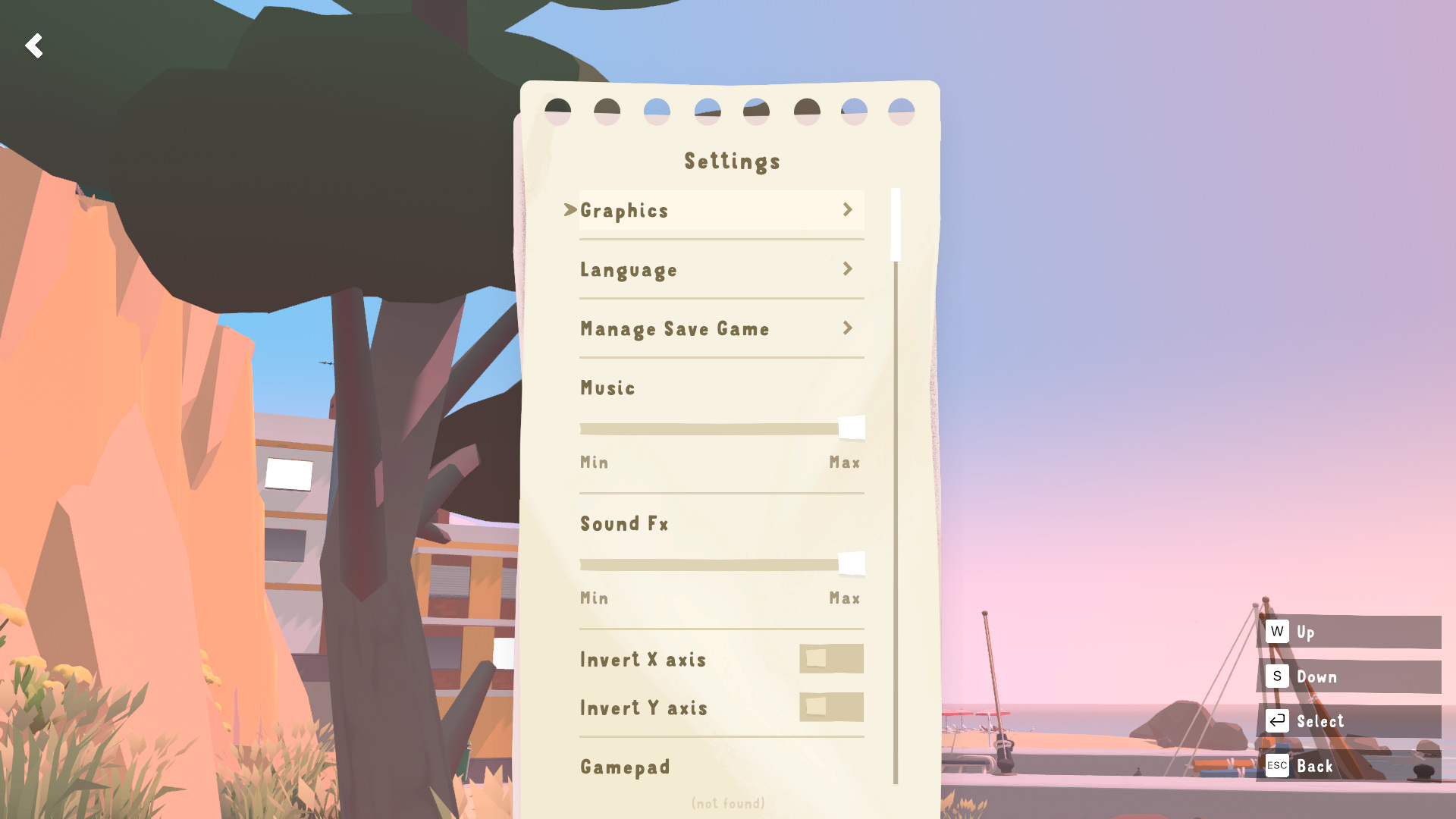
Players may have phobias and you want them to play by turning on an option or they need a specific accessibility feature (color blindness, haptic feedback, text scale, subtitles, etc).
There is so much more than a volume slider, and everything depends on the kind of project you are making. This tutorial aims to provide a tool to make creating settings as easily as possible.
Start
We will begin with definitions. Definitions are (as the name implies) a way to define a setting. This data class is a ScriptableObject and will hold every data needed to kickstart a new setting.
Let’s begin by making the base class :
using System;
using LuckiusDev.Utils.ScriptableObjects;
using UnityEngine;

namespace Game.Settings
{
	public abstract class SettingDefinition : ScriptableObject
	{
		[SerializeField, ScriptableObjectId] private string m_identifier;
		public string Identifier => m_identifier;

		[SerializeField] private string m_displayName;
		public string DisplayName => m_displayName;

		public abstract object GetDefaultValue();
		public abstract Type GetFieldType();
	}
}
Obviously, I need to explain a few things. We make an abstract class, meaning we won’t be able to serialize it. We will make concrete implementations later.
First, is this [ScriptableObjectId] annotation : This is a custom annotation that I have in my utility package (available here), a collection of scripts, components and otherwise that I’m too lazy to copy-paste manually in my projects. It generates automatically a unique identifier which will be quite useful later.
You can either install my utility package in your project, or follow these steps :
Step 1. Create the attribute :
public class ScriptableObjectIdAttribute : PropertyAttribute { }
Step 2. Create the property drawer :
[CustomPropertyDrawer(typeof(ScriptableObjectIdAttribute))]
public class ScriptableObjectIdPropertyDrawer : PropertyDrawer
{
	public override void OnGUI(Rect position, SerializedProperty property, GUIContent label) {
	GUI.enabled = false;
	if (string.IsNullOrEmpty(property.stringValue)) {
		property.stringValue = Guid.NewGuid().ToString();
	}
	EditorGUI.PropertyField(position, property, label, true);
	GUI.enabled = true;
	}
}
That’s it. Every string property with this attribute will generate a random GUID and apply it to the property’s string value. We could add checks to prevent errors in case you apply this attribute on other variable types but, you won’t… right? :D
You don’t have to name it [ScriptableObjectId] by the way.
Back to the main content : We add a display name property, because you might want to have a nice name for your setting. Even if you don’t, we will need it anyway later.
We then have two methods GetDefaultValue and GetFieldType. They will define respectively, what is the default value of the setting (duh) and what type it is : float, int, string, etc.
In case you are also wondering why I’m doing this :
[SerializeField] private string m_displayName;
public string DisplayName => m_displayName;
ScriptableObjects are data containers, unless necessary, they shouldn’t be showing public values that can be tempered with. This is part of the SOLID principles, I think.
Nice, now that we have this set up we can have our concrete types :
using System;
using UnityEngine;

namespace Game.Settings.Definitions
{
	[CreateAssetMenu(fileName = "New Boolean Definition", menuName = "Game/Settings/Definitions/New Boolean Definition")]
	public class BoolSettingDefinition : SettingDefinition
	{
		[SerializeField] private bool m_defaultValue;

        public override object GetDefaultValue() => m_defaultValue;

        public override Type GetFieldType() => typeof(bool);
	}
}
This is the BoolSettingDefinition for toggles/checkboxes. Because it derives from SettingDefinition you will have to implement both methods we made earlier. We also add the CreateAssetMenu attribute on top of the class because we want to be able to create those scriptable objects from the editor.
using System;
using UnityEngine;

namespace Game.Settings.Definitions
{
	[CreateAssetMenu(fileName = "New Float Definition", menuName = "Game/Settings/Definitions/New Float Definition")]
	public class FloatSettingDefinition : SettingDefinition
	{
		[SerializeField] private float m_defaultValue;
		[SerializeField] private float m_minValue;

        public float MinValue => m_minValue;
		[SerializeField] private float m_maxValue;
		public float MaxValue => m_maxValue;

        public override object GetDefaultValue() => m_defaultValue;

        public override Type GetFieldType() => typeof(float);
	}
}
FloatSettingDefinition has two unique properties MinValue and MaxValue, they will be used on sliders to limit the user. You don’t want -10.000.000 brightness, do you now?
using System;
using UnityEngine;

namespace Game.Settings.Definitions
{
	[CreateAssetMenu(fileName = "New Option Definition", menuName = "Game/Settings/Definitions/New Option Definition")]
	public class OptionSettingDefinition : SettingDefinition
	{
		[SerializeField] private int m_defaultValue;

        [SerializeField] private string[] m_options;
		public string[] Options => m_options;

        public override object GetDefaultValue() => m_defaultValue;

        public override Type GetFieldType() => typeof(int);
	}
}
OptionSettingDefinition will be our substitute for enum values. Enums are essentially just integers with a name attached. We expose an array of string options, but the type is an int.
Now that we have types, we will make bindings, to apply the values :
using UnityEngine;

namespace Game.Settings
{
	public abstract class SettingBinding : ScriptableObject
	{
		public abstract void Apply(object value);
	}
}
Simple as that. Same thing, an abstract ScriptableObject with a single method Apply that takes an object value.
Make it work
Now that we have some data containers, we can start to make it work properly. We are going to start with two new data containers. Yeah, I know, I know, but it’s really useful and it makes code somewhat cleaner :
using System;
using UnityEngine;

namespace Game.Settings
{
	[Serializable]
	public struct SettingPair
	{
		[SerializeField] private SettingDefinition m_definition;
		public SettingDefinition Definition => m_definition;

        [SerializeField] private SettingBinding m_binding;
		public SettingBinding Binding => m_binding;
	}
}
This struct let us create a pair between a definition and a binding, meaning that for the given SettingDefinition, any time the actual value changes, the SettingBinding will receive the info and apply the change.
using System;
using UnityEngine;

namespace Game.Settings
{
	[CreateAssetMenu(fileName = "New Settings Preset", menuName = "Game/Settings/New Settings Preset")]
	public class SettingsPreset : ScriptableObject
	{
		[SerializeField] private SettingPair[] m_settingPairs = Array.Empty<SettingPair>();
		public SettingPair[] SettingsPairs => m_settingPairs;
	}
}
Another ScriptableObject with an array of those big ol’ pairs. You’ll probably only have one of those per project, altough we could reuse this system and make it so you can have presets for local settings that are only ever used at one place and are not meant to be saved globally.
Now, we are going to the meat of it: the SettingsManager! This is the class that will handle our settings during runtime.
using System;
using System.Collections.Generic;
using System.IO;
using LuckiusDev.Utils.Singleton;
using UnityEngine;

namespace Game.Settings
{
    public class SettingsManager : PersistentSingleton<SettingsManager>
    {
        private const string k_saveFileName = "settings.json";
        private static string s_saveFilePath => Path.Combine(Application.persistentDataPath, k_saveFileName);

        [SerializeField] private SettingsPreset m_settingsPreset;

        private readonly Dictionary<SettingDefinition, ISettingInstance> m_instances = new();
        public IReadOnlyDictionary<SettingDefinition, ISettingInstance> Instances => m_instances;

        private readonly Dictionary<string, ISettingInstance> m_instancesById = new();

        protected override void Awake()
        {
            base.Awake();
            Initialize();

            if (HasSaveFile())
            {
                Load();
            }
            else
            {
                Save();
            }
        }

        private void Initialize()
        {
            foreach (var pair in m_settingsPreset.SettingsPairs)
            {
                var definition = pair.Definition;
                if (!m_instances.TryGetValue(definition, out var instance))
                {
                    instance = new SettingInstance(pair.Definition);
                    m_instances.Add(pair.Definition, instance);
                    m_instancesById[definition.Identifier] = instance;
                }

                var binding = pair.Binding;
                if (binding == null) continue;
                binding.Apply(instance.CurrentValue);
                instance.OnChanged += binding.Apply;
            }
        }

        public bool TryGet(SettingDefinition key, out ISettingInstance instance)
        {
            return m_instances.TryGetValue(key, out instance);
        }

        public void ResetAll()
        {
            foreach (var pair in m_instances)
            {
                pair.Value.Reset();
            }
        }

        public void Save()
        {
            try
            {
                var data = new SettingsData();

                foreach (var (definition, instance) in m_instances)
                {
                    data.entries.Add(new SettingEntry
                    {
                        key = definition.Identifier,
                        value = Convert.ToString(instance.CurrentValue)
                    });
                }

                string json = JsonUtility.ToJson(data, prettyPrint: true);
                File.WriteAllText(s_saveFilePath, json);
                Debug.Log($"[SettingsManager] Settings saved to: {s_saveFilePath}");
            }
            catch (Exception e)
            {
                Debug.LogError($"[SettingsManager] Failed to save settings: {e.Message}");
            }
        }

        public bool HasSaveFile() => File.Exists(s_saveFilePath);

        public void Load()
        {
            try
            {
                if (!File.Exists(s_saveFilePath))
                {
                    Debug.Log("[SettingsManager] No save file found, using defaults.");
                    return;
                }

                string json = File.ReadAllText(s_saveFilePath);
                var data = JsonUtility.FromJson<SettingsData>(json);
                if (data?.entries == null) return;

                foreach (var entry in data.entries)
                {
                    if (!m_instancesById.TryGetValue(entry.key, out var instance))
                    {
                        Debug.LogWarning($"[SettingsManager] No instance found for setting '{entry.key}', skipping.");
                        continue;
                    }

                    Type fieldType = instance.GetDefaultValue().GetType();
                    object parsed = ParseValue(entry.value, fieldType);
                    if (parsed != null)
                        instance.CurrentValue = parsed;
                }

                Debug.Log($"[SettingsManager] Settings loaded from: {s_saveFilePath}");
            }
            catch (Exception e)
            {
                Debug.LogError($"[SettingsManager] Failed to load settings: {e.Message}");
            }
        }

        private static object ParseValue(string raw, Type targetType)
        {
            try
            {
                return Convert.ChangeType(raw, targetType);
            }
            catch (Exception e)
            {
                Debug.LogWarning($"[SettingsManager] Could not parse '{raw}' as {targetType.Name}: {e.Message}");
                return null;
            }
        }

        [Serializable]
        private class SettingsData
        {
            public List<SettingEntry> entries = new();

            public SettingsData() { }

            public SettingsData(Dictionary<string, string> source)
            {
                foreach (var kvp in source)
                {
                    entries.Add(new SettingEntry
                    {
                        key = kvp.Key,
                        value = kvp.Value
                    });
                }
            }
        }


        [Serializable]
        private class SettingEntry
        {
            public string key;
            public string value;
        }
    }
}
There’s a lot, I know, but we will go step by step. First of all, we need to make an interface and another class for data. I kinda lied earlier about not having anymore data containers to make, bleh :p
using System;

namespace Game.Settings
{
    public interface ISettingInstance
    {
        public event Action<object> OnChanged;

        public object CurrentValue { get; set; }

        public bool TryGetDefinition<T>(out T definition) where T : SettingDefinition;

        public void Reset();

        public Type GetFieldType();

        public object GetDefaultValue();
    }
}
This interface serves as an abstraction to only expose stuff we actually want to show to other classes. Those properties are self explanatory, but we will see what they do in the concrete implementation right here :
using System;

namespace Game.Settings
{
    public class SettingInstance : ISettingInstance
    {
        private readonly SettingDefinition m_definition;
        private object m_currentValue;

        public event Action<object> OnChanged;

        public object CurrentValue
        {
            get => m_currentValue;
            set
            {
                m_currentValue = value;
                OnChanged?.Invoke(value);
            }
        }

        public SettingInstance(SettingDefinition definition)
        {
            m_definition = definition;
            m_currentValue = GetDefaultValue();
        }

        public bool TryGetDefinition<T>(out T definition) where T : SettingDefinition
        {
            if (m_definition is T value)
            {
                definition = value;
                return true;
            }

            definition = null;
            return false;
        }

        public void Reset()
        {
            CurrentValue = GetDefaultValue();
        }

		public Type GetFieldType() => m_definition.GetFieldType();

        public object GetDefaultValue() => m_definition.GetDefaultValue();
    }
}
In case that wasn’t clear by now, SettingInstance is the actual runtime value of the setting. We don’t store stuff in ScriptableObjects, yuck.
The Action<string> OnChanged event will propagate our value change to anything we bind it to, to prevent having to poll the value every frame in an Update loop, we have standards here.

Reset will let us set the value back to the original one. GetDefaultValue is a wrapper to access the default value from the instance rather than the definition. We still have a bool TryGetDefinition<T>(out T definition) to try and get the definition. In the constructor, we set m_currentValue to be the definition’s current value, which will help with initialization.
Now that we have that out of the way, let’s get back to SettingsManager. Like our property attribute previously, I’m using another class available in my utility package, and this comes from Tarodev’s “Unity Architecture for Noobs - Game Structure” video. I can also recommand git-amend’s “Better Singletons in Unity C#” if you want to learn about singletons in Unity.
But simply put, the system will have a unique instance, and will never destroy when changing scenes, meaning you can add it once and it will work anywhere.
private void Initialize()
{
	foreach (var pair in m_settingsPreset.SettingsPairs)
	{
		var definition = pair.Definition;
		if (!m_instances.TryGetValue(definition, out var instance))
		{
			instance = new SettingInstance(definition);
			m_instances.Add(definition, instance);
			m_instancesById[definition.Identifier] = instance;
		}

		var binding = pair.Binding;
		if (binding == null) continue;
		binding.Apply(instance.CurrentValue);
		instance.OnChanged += binding.Apply;
	}
}
This method is important, you need to call it into Awake. It will create the actual instances and bind our ScriptableObjects. We loop through each pair, get the definition and check if the value already exists. This is in case you use the same definition for multiple bindings. We could replace our single SettingBinding by an array or list instead, but it’s still useful.
In case the value isn’t present already, we create a new SettingInstance and add it to the dictionary. the definition is the key, but we have another dictionary with strings as keys which will become useful for serializing to JSON later (this is why we added an identifier property).
After that we check if there’s a binding in the pair, and skip if not, you might still want to add the setting without it doing anything right now. In the case there is a binding, we call Apply one time to set the value and we connect the method to SettingInstance.OnChanged. From now one, every time the instance’s value will change, the binding will receive this info and apply the value.
And that’s already great! It should work properly already. But we have a bunch of stuff we can do to make it better. Before doing serialization from file, we’ll take a look at the two other remaining methods :
public void ResetAll()
{
	foreach (var pair in m_instances)
	{
		pair.Value.Reset();
	}
}
Guess what it does? That’s right, it resets all the instances values.
public bool TryGet(SettingDefinition key, out ISettingInstance instance)
{
	return m_instances.TryGetValue(key, out instance);
}
This method will let us get an instance by using a SettingDefinition as the key. This is just a wrapper for the dictionary. It’s useful to have access to instances outside of bindings.
Serialization : Saving/Loading with JSON
Let’s save and load! On top of the class we define those properties:
private const string k_saveFileName = "settings.json";
private static string s_saveFilePath => Path.Combine(Application.persistentDataPath, k_saveFileName);
k_saveFileName is of course the name of the file, you can put whatever you want here, as long as it ends with .json, and then there’s the static s_saveFilePath value, that creates a path in the Application.persistentDataPath (usually %APPDATA%).
public bool HasSaveFile() => File.Exists(s_saveFilePath);
Is a utility method to check if settings have been saved already. Before doing saving and loading, we must define d a t a c o n t a i n e r s :
[Serializable]
private class SettingEntry
{
	public string key;
	public string value;
}
The key will be our SettingDefinition unique identifier, and value will be the string version of our value. In case you ever make custom definitions with a custom type, make sure it’s serializable so it can be converted properly. Now, we serialize the dictionary :
[Serializable]
private class SettingsData
{
	public List<SettingEntry> entries = new();

	public SettingsData() { }

	public SettingsData(Dictionary<string, string> source)
	{
		foreach (var kvp in source)
		{
			entries.Add(new SettingEntry
			{
				key = kvp.Key,
				value = kvp.Value
			});
		}
	}
}
We also need to add one method that will be needed for loading the values later :
private static object ParseValue(string raw, Type targetType)
{
	try
	{
		return Convert.ChangeType(raw, targetType);
	}
	catch (Exception e)
	{
		Debug.LogWarning($"[SettingsManager] Could not parse '{raw}' as {targetType.Name}: {e.Message}");
		return null;
	}
}
This method tries to convert the string value into the given target type (this is why we have SettingDefinition.GetFieldType()). In case it fails, it print a warning in the console.
public void Save()
{
	try
	{
		var data = new SettingsData();

		foreach (var (definition, instance) in m_instances)
		{
			data.entries.Add(new SettingEntry
			{
				key = definition.Identifier,
				value = Convert.ToString(instance.CurrentValue)
			});
		}

		string json = JsonUtility.ToJson(data, prettyPrint: true);
		File.WriteAllText(s_saveFilePath, json);
		Debug.Log($"[SettingsManager] Settings saved to: {s_saveFilePath}");
	}
	catch (Exception e)
	{
		Debug.LogError($"[SettingsManager] Failed to save settings: {e.Message}");
	}
}
We create a new SettingsData container, then loop trough all the instances and create a SettingEntry for each of them, with SettingDefinition.Identifier as the key, and the instance CurrentValue converted into a string.
Then, we convert the data into JSON, and we write all of that into our file. If any of that fails, we of course get a nice error message in the console.
Saving is the easiest to understand, it boils down to converting values to string, format for JSON and write to file.
public void Load()
{
	try
	{
		if (!HasSaveFile())
		{
			Debug.Log("[SettingsManager] No save file found, using defaults.");
			return;
		}

		string json = File.ReadAllText(s_saveFilePath);
		var data = JsonUtility.FromJson<SettingsData>(json);
		if (data?.entries == null) return;

		foreach (var entry in data.entries)
		{
			if (!m_instancesById.TryGetValue(entry.key, out var instance))
			{
				Debug.LogWarning($"[SettingsManager] No instance found for setting '{entry.key}', skipping.");
				continue;
			}

			Type fieldType = instance.GetFieldType();
			object parsed = ParseValue(entry.value, fieldType);
			if (parsed != null)
				instance.CurrentValue = parsed;
		}

		Debug.Log($"[SettingsManager] Settings loaded from: {s_saveFilePath}");
	}
	catch (Exception e)
	{
		Debug.LogError($"[SettingsManager] Failed to load settings: {e.Message}");
	}
}
At the top of this method, we check if a save file exists. If not, we just return because we don’t have anything to load.
if (!HasSaveFile())
{
	Debug.Log("[SettingsManager] No save file found, using defaults.");
	return;
}
But if we do, we load the text into a string, and convert it to our SettingsData class. If the data or the entries list is null, the data wasn’t able to load and we return early.
string json = File.ReadAllText(s_saveFilePath);
var data = JsonUtility.FromJson<SettingsData>(json);
if (data?.entries == null) return;
We iterate through each entry in the list, and finally use m_instancesById to try and get our instance by using the key. In case it was not found, we skip the current entry.
We then grab the intance field type and try to parse the value. If successful, the instance CurrentValue is set, triggering the event for every binding.
Type fieldType = instance.GetFieldType();
object parsed = ParseValue(entry.value, fieldType);
if (parsed != null)
	instance.CurrentValue = parsed;
Nice! In Awake, you can put this nice little piece of code :
if (HasSaveFile())
{
	Load();
}
else
{
	Save();
}
It checks it a save file exists and attempt to load it if so. In the other case, it will save the default values for the first time. We could stop here, and you can figure out how to use the system yourself. But, i’m a kind soul, and I will show you some uses and add more utilities.
Customizing the editor
Making a custom editor for SettingsManager
I love doing tools. And this next part is insanely useful.
We don’t have a user interface yet. But we need to test if our settings work. We will get to the UI, but I want to be able to edit the settings values in the editor too. We also could make the definitions scriptable objects prettier. Let’s do that. Since the editor code for the SettingsManager is a bit long, I’ll start with the step by step this time but I’ll still put the full code down below :
using System.Linq;
using Game.Editor;
using Game.Settings.Definitions;
using UnityEditor;
using UnityEditor.UIElements;
using UnityEngine;
using UnityEngine.UIElements;

namespace Game.Settings.Editor
{
    [CustomEditor(typeof(SettingsManager))]
    public class SettingsManagerEditor : UnityEditor.Editor
    {
    }
}
We create a new custom editor like so, extending from UnityEditor.Editor and (very important) adding the [CustomEditor] attribute.
Because we are fancy and want to use the latest technologies, let’s use the new UI Toolkit system to build our Inspector GUI, while still using code. Add this method:
public override VisualElement CreateInspectorGUI()
{
	var root = new VisualElement();
	// TODO: Add our beautiful inspector here
	return root;
}
If you go back to Unity, you’ll notice that nothing is displaying on your component’s inspector anymore. This is normal, we will add everything gradually. Before that, add this utility class:
using UnityEngine;
using UnityEngine.UIElements;

namespace Game.Editor
{
    public static class ElementUtils
    {
        public static void AddHeader(this VisualElement element, string text, TextAnchor anchor = TextAnchor.MiddleCenter)
        {
            element.AddTitle(text, anchor);
            element.AddSeparator();
        }

        public static void AddTitle(this VisualElement element, string text, TextAnchor anchor = TextAnchor.MiddleCenter)
        {
            var title = new Label(text)
            {
                style =
                {
                    unityTextAlign = anchor,
                    unityFontStyleAndWeight = FontStyle.Bold,
                    marginTop = 4,
                    marginBottom = 4
                }
            };

            element.Add(title);
        }

        public static void AddSeparator(this VisualElement element)
        {
            element.Add(new VisualElement
            {
                style =
                {
                    height = 1,
                    backgroundColor = new Color(0f, 0f, 0f, 0.3f),
                    marginBottom = 6
                }
            });
        }
    }
}
This will add extension methods to have a nice title and separators, you can reuse this in anything that uses UI Toolkit.
Now, go back to SettingsManagerEditor and add a new SerializedPropertyReference and a way to get our SettingsManager :
private SerializedProperty m_settingsPresetProp;
private SettingsManager Manager => (SettingsManager)target;
Add OnEnable to get the property:
private void OnEnable()
{
	m_settingsPresetProp = serializedObject.FindProperty("m_settingsPreset");
}
Now that we have all of that, we can start building the actual GUI. After new VisualElement(), let’s create our first header, and add back our preset property:
var root = new VisualElement();

root.AddHeader("Setup");
root.Add(new PropertyField(m_settingsPresetProp));
It should look like this (my inspector is red because I was on play mode during the time of this screenshot):

Nice, it’s the same as before, but prettier with the header. Now the interesting part :
root.AddHeader("Properties");

var listContainer = CreateListContainer();
root.Add(listContainer);
RebuildList(listContainer);
But what is CreateListContainer and RebuildList ? First one is a simple method to create a nice looking container for our properties :
private static VisualElement CreateListContainer()
{
	var listContainer = new VisualElement
	{
		style =
		{
			backgroundColor = new Color(0.18f, 0.18f, 0.18f),
			borderLeftWidth = 1,
			borderRightWidth = 1,
			borderTopWidth = 1,
			borderBottomWidth = 1,
			borderTopLeftRadius = 6,
			borderTopRightRadius = 6,
			borderBottomLeftRadius = 6,
			borderBottomRightRadius = 6,
			borderLeftColor = new Color(0.3f, 0.3f, 0.3f),
			borderRightColor = new Color(0.3f, 0.3f, 0.3f),
			borderTopColor = new Color(0.3f, 0.3f, 0.3f),
			borderBottomColor = new Color(0.3f, 0.3f, 0.3f),
			paddingLeft = 6,
			paddingRight = 6,
			paddingTop = 6,
			paddingBottom = 6
		}
	};

	return listContainer;
}
You can edit the style how you want. I think it looks nice. Now the actual interesting method:
private void RebuildList(VisualElement container)
{
	container.Clear();

	int count = 0;
	// TODO : Serialize the properties

	if (count == 0)
		container.AddTitle("No Instances");
}
This is where the magic will happen. First of all, we clear the container of any potential children. Then we add a counter, and if it’s zero, we add a title (method from our utility class) saying that there’s no instances.
Right after count, let’s iterate through all instances:
foreach (var pair in Manager.Instances)
{
	var instance = pair.Value;
}
We can start render our properties. First, FloatSettingDefinition :
if (pair.Key is FloatSettingDefinition floatSetting)
{
	var row = new VisualElement
	{
		style =
		{
			flexDirection = FlexDirection.Row,
			alignItems = Align.Center,
			justifyContent = Justify.SpaceBetween,
			marginBottom = 2
		}
	};

	var left = new Label(floatSetting.DisplayName)
	{
		style =
		{
			marginRight = 8
		}
	};
	row.Add(left);

	var slider = new Slider(floatSetting.MinValue, floatSetting.MaxValue)
	{
		value = (float)instance.CurrentValue,
		showInputField = true,
		style =
		{
			flexGrow = 1
		}
	};

	slider.RegisterValueChangedCallback(evt =>
	{
		instance.CurrentValue = evt.newValue;
	});

	row.Add(slider);

	instance.OnChanged += value =>
	{
		float v = (float)value;
		slider.SetValueWithoutNotify(v);
	};

	container.Add(row);
	count++;
}
We add a new VisualElement that we call row, and change the style so any child will be aligned horizontally. We add a label and we use our SettingDefinition.DisplayName value.
Next, we create a Slider, set the min and max values to be those of the setting definition, as well as the current value. We use flexGrow in the style style so it takes the remaining space in the row.
When we change the value from the slider, we listen to RegisterValueChangedCallback to set the instance current value to the new value. This will trigger the event and update any binding present.
Now, in case you update the value from anywhere else, we must update this GUI:
instance.OnChanged += value =>
{
	float v = (float)value;
	slider.SetValueWithoutNotify(v);
};
We specifically call SetValueWithoutNotify to prevent the callback from being trigger, causing an infinite loop.
Add a FloatSettingDefinition to the preset, and start the game, you’ll see that the property is now visible, with a nice slider and your display name.
else if (pair.Key is BoolSettingDefinition boolSetting)
{
	var row = new VisualElement
	{
		style =
		{
			flexDirection = FlexDirection.Row,
			alignItems = Align.Center,
			justifyContent = Justify.SpaceBetween,
			marginBottom = 2
		}
	};

	var left = new Label(boolSetting.DisplayName)
	{
		style =
		{
			width = 150
		}
	};
	row.Add(left);

	var toggle = new Toggle
	{
		value = (bool)instance.CurrentValue
	};

	toggle.RegisterValueChangedCallback(evt =>
	{
		instance.CurrentValue = evt.newValue;
	});

	row.Add(toggle);

	instance.OnChanged += value =>
	{
		bool v = (bool)value;
		toggle.SetValueWithoutNotify(v);
	};

	container.Add(row);
	count++;
}
This is for the BoolSettingDefinition. Same concept, except you have a toggle instead. And to finish:
else if (pair.Key is OptionSettingDefinition optionSetting)
{
	var row = new VisualElement
	{
		style =
		{
			flexDirection = FlexDirection.Row,
			alignItems = Align.Center,
			justifyContent = Justify.SpaceBetween,
			marginBottom = 2
		}
	};

	var left = new Label(optionSetting.DisplayName)
	{
		style =
		{
			width = 150
		}
	};
	row.Add(left);

	var defaultValue = (int)optionSetting.GetDefaultValue();
	var choices = optionSetting.Options.ToList();
	var dropdown = new DropdownField(choices, choices[defaultValue])
	{
		style =
		{
			flexGrow = 1
		}
	};

	dropdown.RegisterValueChangedCallback(evt =>
	{
		var index = choices.IndexOf(evt.newValue); // OR dropdown.index;
		instance.CurrentValue = index;
	});

	row.Add(dropdown);

	instance.OnChanged += value =>
	{
		dropdown.SetValueWithoutNotify(choices[(int)value]);
	};

	container.Add(row);
	count++;
}
}
For OptionSettingDefinition, we use a DropdownField that we populate with our options. It’s as simple as that :
- Create the field
- Register the callback to update the value
- Connect to the instance event on changes
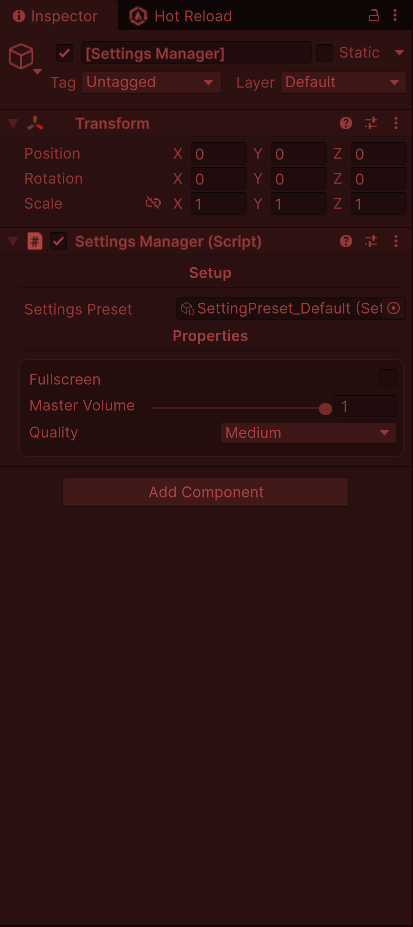
You have a beautiful inspector where you can edit your settings.
Making custom editors for SettingDefinitions
Now, why wouldn’t our definitions shouldn’t have the same treatment too? We will create a base class for the editor :
using Game.Editor;
using UnityEditor;
using UnityEditor.UIElements;
using UnityEngine.UIElements;

namespace Game.Settings.Editor
{
    public abstract class SettingDefinitionEditor : UnityEditor.Editor
    {
        private SerializedProperty m_identifierProp;
        private SerializedProperty m_displayNameProp;

        protected virtual void OnEnable()
        {
            m_identifierProp = serializedObject.FindProperty("m_identifier");
            m_displayNameProp = serializedObject.FindProperty("m_displayName");
        }

        public override VisualElement CreateInspectorGUI()
        {
            var root = new VisualElement();

            root.AddHeader("Main Info");

            var identifier = new PropertyField(m_identifierProp);
            identifier.SetEnabled(false);
            root.Add(identifier);

            root.Add(new PropertyField(m_displayNameProp));

            return root;
        }
    }
}
It displays the identifier property as a readonly value, and the display name. Now, let’s quickly go over our concrete implementations :
using Game.Editor;
using Game.Settings.Definitions;
using UnityEditor;
using UnityEditor.UIElements;
using UnityEngine.UIElements;

namespace Game.Settings.Editor
{
    [CustomEditor(typeof(BoolSettingDefinition))]
    public class BoolSettingDefinitionEditor : SettingDefinitionEditor
    {
        private SerializedProperty m_defaultValueProp;

        protected override void OnEnable()
        {
            base.OnEnable();
            m_defaultValueProp = serializedObject.FindProperty("m_defaultValue");
        }

        public override VisualElement CreateInspectorGUI()
        {
            var root = base.CreateInspectorGUI();
            root.Add(new PropertyField(m_defaultValueProp));

            return root;
        }
    }
}
This next one is a bit particular, because we add code to prevent min from going over max. Then we clamp the Slider high and low values. Our m_defaultValue is now a slider limited to the range we made earlier:
using Game.Editor;
using Game.Settings.Definitions;
using LuckiusDev.Utils;
using UnityEditor;
using UnityEngine.UIElements;
using UnityEditor.UIElements;

namespace Game.Settings.Editor
{
    [CustomEditor(typeof(FloatSettingDefinition))]
    public class FloatSettingDefinitionEditor : SettingDefinitionEditor
    {
        private SerializedProperty m_defaultValueProp;
        private SerializedProperty m_minValueProp;
        private SerializedProperty m_maxValueProp;

        protected override void OnEnable()
        {
            base.OnEnable();

            m_defaultValueProp = serializedObject.FindProperty("m_defaultValue");
            m_minValueProp = serializedObject.FindProperty("m_minValue");
            m_maxValueProp = serializedObject.FindProperty("m_maxValue");
        }

        public override VisualElement CreateInspectorGUI()
        {
            var root = base.CreateInspectorGUI();

            root.AddHeader("Properties");

            var minField = new FloatField("Min Value");
            var maxField = new FloatField("Max Value");

            minField.BindProperty(m_minValueProp);
            maxField.BindProperty(m_maxValueProp);

            root.Add(minField);
            root.Add(maxField);

            var slider = new Slider("Default Value")
            {
                showInputField = true
            };

            root.Add(slider);

            void RefreshUI()
            {
                serializedObject.Update();

                float min = m_minValueProp.floatValue;
                float max = m_maxValueProp.floatValue;

                // Ensure min <= max
                if (min > max)
                {
                    max = min;
                    m_maxValueProp.floatValue = max;
                    serializedObject.ApplyModifiedProperties();
                }

                slider.lowValue = min;
                slider.highValue = max;

                // Clamp default value
                float def = m_defaultValueProp.floatValue;
                float clamped = UnityEngine.Mathf.Clamp(def, min, max);

                if (!JMath.IsApproxEqual(clamped, def))
                {
                    m_defaultValueProp.floatValue = clamped;
                    serializedObject.ApplyModifiedProperties();
                }

                slider.value = clamped;
            }

            // Initial setup
            RefreshUI();

            // Slider change
            slider.RegisterValueChangedCallback(evt =>
            {
                m_defaultValueProp.floatValue = evt.newValue;
                serializedObject.ApplyModifiedProperties();
            });

            // React to min/max changes
            root.schedule.Execute(RefreshUI).Every(200);

            return root;
        }
    }
}
For OptionSettingDefinition, m_defaultValue is a dropdown. When the m_options array is empty, it will be disabled and “None” will be written. When options are added, you can select one of them in the dropdown. If any value is removed, it will try to get the first or last value depending on which was removed:
using System;
using System.Collections.Generic;
using Game.Editor;
using Game.Settings.Definitions;
using UnityEditor;
using UnityEditor.UIElements;
using UnityEngine.UIElements;

namespace Game.Settings.Editor
{
    [CustomEditor(typeof(OptionSettingDefinition))]
    public class OptionSettingDefinitionEditor : SettingDefinitionEditor
    {
        private SerializedProperty m_defaultValueProp;
        private SerializedProperty m_optionsProp;

        protected override void OnEnable()
        {
            base.OnEnable();
            m_defaultValueProp = serializedObject.FindProperty("m_defaultValue");
            m_optionsProp = serializedObject.FindProperty("m_options");
        }

        public override VisualElement CreateInspectorGUI()
        {
            var root = base.CreateInspectorGUI();

            root.AddHeader("Properties");
            root.Add(new PropertyField(m_optionsProp));

            var dropdown = new PopupField<string>();
            dropdown.label = "Default Value";

            root.Add(dropdown);

            void RefreshDropdown()
            {
                serializedObject.Update();

                var options = GetOptions();

                if (options.Length == 0)
                {
                    dropdown.choices = new List<string> { "None" };
                    dropdown.index = 0;
                    dropdown.SetEnabled(false);
                    return;
                }

                dropdown.SetEnabled(true);

                dropdown.choices = new List<string>(options);

                int index = m_defaultValueProp.intValue;

                // Clamp index (important if options changed)
                if (index < 0)
                {
                    index = 0;
                    m_defaultValueProp.intValue = index;
                    serializedObject.ApplyModifiedProperties();
                }
                else if (index >= options.Length)
                {
                    index = options.Length - 1;
                    m_defaultValueProp.intValue = index;
                    serializedObject.ApplyModifiedProperties();
                }

                dropdown.index = index;
            }

            // Initial build
            RefreshDropdown();

            dropdown.RegisterValueChangedCallback(evt =>
            {
                int newIndex = dropdown.index;

                m_defaultValueProp.intValue = newIndex;
                serializedObject.ApplyModifiedProperties();
            });

            // React to options changes
            root.schedule.Execute(RefreshDropdown).Every(200);

            return root;
        }

        private string[] GetOptions()
        {
            if (m_optionsProp.arraySize == 0)
                return Array.Empty<string>();

            var result = new string[m_optionsProp.arraySize];

            for (int i = 0; i < m_optionsProp.arraySize; i++)
            {
                result[i] = m_optionsProp.GetArrayElementAtIndex(i).stringValue;
            }

            return result;
        }
    }
}
Some Bindings Example
Here are a collection of bindings that we can implement in the game:
using UnityEngine;

namespace Game.Settings.Bindings
{
    [CreateAssetMenu(fileName = "New Fullscreen Binding", menuName = "Game/Settings/Bindings/New Fullscreen Binding")]
    public class FullscreenSettingBinding : SettingBinding
    {
        public override void Apply(object value)
        {
            if (value is not bool newValue)
            {
                Debug.LogError("Value is not boolean!", this);
                return;
            }

            Screen.fullScreen = newValue;
        }
    }
}
We do a little bit of type checking before applying the value. One sad thing to note is that this is one of the only setting that we can’t try outside of builds.
We can have bindings for post-processing effects too, if you are using URP :
using UnityEngine;
using UnityEngine.Rendering;

namespace Game.Settings.Bindings
{
    public abstract class PostProcessSettingBinding<T> : SettingBinding where T : VolumeComponent
    {
        [SerializeField] private VolumeProfile m_profile;

        protected T Component
        {
            get
            {
                if (m_profile == null)
                {
                    Debug.LogError("Unable to find volume profile.");
                    return null;
                }

                m_profile.TryGet(out T component);
                return component;
            }
        }
    }
}
Then you can specify which component you want to use :
using UnityEngine.Rendering.Universal;

namespace Game.Settings.Bindings
{
    public abstract class ColorAdjustmentsSettingBinding : PostProcessSettingBinding<ColorAdjustments> { }
}
using UnityEngine;

namespace Game.Settings.Bindings
{
    [CreateAssetMenu(fileName = "New Brightness Binding", menuName = "Game/Settings/Bindings/Post-Processing/New Brightness Binding")]
    public class BrightnessSettingBinding : ColorAdjustmentsSettingBinding
    {
        public override void Apply(object value)
        {
            if (Component == null)
            {
                Debug.LogWarning("Unable to find component on post-processing volume!", this);
                return;
            }

            if (value is not float brightness)
            {
                Debug.Log("Value is not float!", this);
                return;
            }

            Component.postExposure.value = brightness;
        }
    }
}
Now you can update the brightness of the game. A cool aspect of that is in PostProcessSettingBinding we add a reference to a VolumeProfile which is a ScriptableObject that you put on your Volume game objects in your scene. That means that you don’t have to have a binder class on your scenes but just reference your profile, and it will update for any scene using it.
We can also use a single class, and add a Type enum (you can use whatever name you want) to select which value to update:
using System;
using UnityEngine;
using UnityEngine.Rendering.Universal;

namespace Game.Settings.Bindings
{
    [CreateAssetMenu(fileName = "New Motion Blur Binding", menuName = "Game/Settings/Bindings/Post-Processing/New Motion Blur Binding")]
    public class MotionBlurSettingBinding : PostProcessSettingBinding<MotionBlur>
    {
        private enum Type
        {
            TOGGLE,
            INTENSITY
        }

        [SerializeField] private Type m_type = Type.TOGGLE;

        public override void Apply(object value)
        {
            if (Component == null)
            {
                Debug.LogWarning("Unable to find component on post-processing volume!", this);
                return;
            }

            switch (m_type)
            {
                case Type.TOGGLE:
                    if (value is not bool toggle)
                    {
                        Debug.Log("Value is not boolean!", this);
                        return;
                    }

                    Component.active = toggle;
                    break;
                case Type.INTENSITY:
                    if (value is not float intensity)
                    {
                        Debug.Log("Value is not float!", this);
                        return;
                    }

                    Component.intensity.value = intensity;
                    break;
                default:
                    throw new ArgumentOutOfRangeException();
            }
        }
    }
}
This is better than having to make subclasses for the intensity, toggle or any other setting a component might have. You just create a new MotionBlurSettingBinding instance, set the type, connect to your definition in the SettingsPreset, and voila!
Now you understand how to create bindings for your settings. By that point, I assume you have an idea on how to make your own.
Conclusion & Additionnal Notes
From there, you could try to figure out how to connect this system to a user interface (UGUI or UI Toolkit) by yourself. You can access tutorials about this topic right here :
- How to connect game settings to user interface (UGUI) ?
- How to connect game settings to user interface (UI Toolkit) ?
Regarding SettingsManagerEditor, I think we could make the display of properties a bit cleaner. Having a class with an attribute to define how it is rendered could help separate some logic, make it more flexible, and also reduce the method length.